
Linux笔记
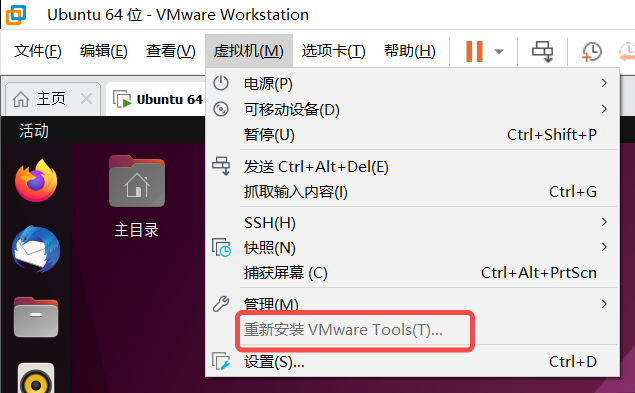
安装VMware Tools
正常安装
- 点击安装VMware Tools

- 打开CD
- 将文件提取解压到本地
- 执行
sudo ./vmware-install.pl - 全部默认为yes
插件安装
sudo apt-get install open-vm-tools open-vm-tools-desktop |
如果出现无法拖动文件:
systemctl enable run-vmblock\\x2dfuse.mount |
安装SSH
查看ssh进程
ps -e|grep ssh |
安装ssh服务
sudo apt-get install openssh-server |
启动ssh服务
/etc/init.d/ssh start |
再次查看可以发现ssh已经打开了

windows通过ssh发送文件到Linux
执行命令
scp 文件 john@192.168.243.133:/home/git |
Linux的/home/git文件夹需要配置权限
使用windows的命令框连接ssh
执行命令,输入密码即可
ssh john@xxx.xxx.xxx.xxx |
Xshell连接虚拟机
配置连接信息

输入用户名、密码


安装服务器版本
可参考
第一章 Ubuntu Server版本选择及安装-CSDN博客
关键步骤
设置静态IP


DNS服务器地址可以在主机使用命令查看
ipconfig /all |
网关使用xxx.xxx.xxx.2
分区配置
选择Custom storage layout

选择free space,Add GPT Partition

配置boot分区,分配500M空间

配置swap分区,分配8G空间

配置其他分区,分配剩余空间

最后的结果,可以看到File System Summary

设置用户名密码

安装禅道
linux用一键安装包(推荐) - 禅道使用手册 - 禅道开源项目管理软件 (zentao.net)
进入opt文件夹,该文件主要用于安装第三方软件
cd /opt |
下载禅道压缩包
wget https://www.zentao.net/dl/zentao/18.5/ZenTaoPMS.18.5.zbox_64.tar.gz |
解压禅道压缩包
tar xvzf ZenTaoPMS.18.5.zbox_64.tar.gz |
启动禅道
opt/zbox/zbox start |
切换服务端口、数据库端口
sudo /opt/zbox/zbox --aport=8083 --mport=3305 start |
添加数据库用户
sudo /opt/zbox/auth/adduser.sh |
查看服务状态
/opt/zbox/zbox status |
安装Git服务器
Git服务器方法
Git服务器
安装git
sudo apt install git |
添加git用户、密码
usradd git |
可以在/home目录下看到git文件夹
新建仓库文件夹,并修改权限
mkdir /home/git/repo |
使用git初始化项目,并修改权限
git init --bare /home/git/repo/project1.git |
Git客户端
克隆项目
git clone git@xxx.xxx.xxx.xxx:/home/git/repo/project1.git |
添加远程
git remote add origin git@xxx.xxx.xxx.xxx:/home/git/repo/project1.git |
GitLab服务器方法
zJHIsUoOGf/598Qv0VCGX7MEXN327pKR3VHdnwpK/V0=
安装和配置所需的依赖
sudo apt-get update |
下载并安装极狐GitLab
curl -fsSL https://packages.gitlab.cn/repository/raw/scripts/setup.sh | /bin/bash |
更新配置
gitlab-ctl reconfigure |
查看密码
cat /etc/gitlab/initial_root_password |
启动GitLab
gitlab-ctl start |
修改配置文件,将external_url的值改为http://xxx.xxx.xxx.xxx:8081,并且重新加载配置,重新启动
vim /etc/gitlab/gitlab.rb |
客户端访问http://xxx.xxx.xxx.xxx:8081即可使用GitLab
备份Git服务器
安装内网穿透
cpolar
官网:cpolar官网-安全的内网穿透工具 | 无需公网ip | 远程访问 | 搭建网站
安装cpolar
curl -L https://www.cpolar.com/static/downloads/install-release-cpolar.sh | sudo bash |
查看版本号
cpolar version |
添加token
cpolar authtoken xxxxxxx |
启动穿透
cpolar http 8080 |
添加、启动、查看服务
sudo systemctl enable cpolar |
注:卸载cpolar
curl -L https://www.cpolar.com/static/downloads/install-release-cpolar.sh | sudo bash -s -- --remove |
安装Mysql数据库
安装mysql
sudo apt install mysql-server |
查看服务是否启动、mysql的版本
sudo systemctl status mysql |
增强mysql安全性
sudo mysql_secure_installation |
身份操作:
第一次进入数据库
sudo mysql |
查看不同用户的身份验证方法
SELECT |
修改root用户的身份验证方式,将auth_socket改为密码验证方式mysql_native_password
ALTER USER 'root'@'localhost' IDENTIFIED WITH mysql_native_password BY 'your_password'; |
重新加载授权表
FLUSH PRIVILEGES; |
添加新用户:
创建新用户、并授予权限,要求8位以上复杂的密码
CREATE USER '用户名称'@'%' IDENTIFIED BY '用户密码'; |
远程连接数据库:
检查用户的host,需要改为%
update user set host='%' where user='root'; |
开机执行程序
将
rc-local.service文件复制到system目录下cp /usr/lib/systemd/system/rc-local.service /etc/systemd/system/
rc-local.service文件需要修改,在后面的内容加上[Install]
WantedBy=multi-user.target
Alias=rc-local.service
其中ExecStart参数可以看出,本质上就是执行了
/etc/rc.local这个文件新建rc.local文件,并写入需要执行的命令
touch /etc/rc.local
chmod 755 /etc/rc.local
vim /etc/rc.localrc.local文件的内容!/bin/bash
/opt/zbox/zbox restart | tee /opt/auto_script/log/open_zentao.log
echo "禅道启动成功"
exit 0开启
rc-local服务systemctl start rc-local
systemctl enable rc-local
systemctl status rc-local重启测试
init 6

使用批处理命令启动VMware的虚拟机
@echo off |
命令别名
vi ~/.bashrc |
需要添加的内容
alias [别名]=[需要别名的命令] |
命令
systemctl
Systemctl是用于控制systemd系统和服务管理器的命令行工具。
例如:
查找VMware Tools运行状态
sudo systemctl status vmware-tools.service |
一个用于在系统启动时自动启用名为 cpolar 的服务的命令。
sudo systemctl enable cpolar |
ps
ps查看进程信息,-e查看全部进程
例如:
grep使用ps查出的信息筛选出ssh关键词的信息
ps -e|grep ssh |
tar
压缩指定文件
tar xvzf ZenTaoPMS.18.5.zbox_64.tar.gz
解压缩名为”ZenTaoPMS.18.5.zbox_64.tar.gz”的压缩文件
x: 解压缩文件v: 显示详细信息(verbose)z: 使用gzip进行解压缩f: 指定要解压缩的文件名
wget
下载文件
wget https://www.zentao.net/dl/zentao/18.5/ZenTaoPMS.18.5.zbox_64.tar.gz
将网站上的ZenTaoPMS.18.5.zbox_64.tar.gz文件下载到当前文件夹
mkdir
创建文件夹
mkdir repository-git
在当前目录下创建repository-git文件夹
chown
用于更改文件或目录的所有者和群组。
chown -R git:git repository-git/
将repository-git/目录及其子目录下的所有文件和目录的所有者和所属组更改为git用户和git组。
-R参数表示递归地更改目录及其子目录下的所有文件和目录的所有者和所属组。
git
git init –bare repository-git/
创建一个裸仓库。
裸仓库(bare repository)是一个没有工作目录的Git仓库,只包含Git版本库的管理数据,不包含实际的项目文件。这样的仓库通常用于作为远程仓库,用于推送和拉取代码,而不是直接在仓库中进行开发工作。
这个文件夹将包含.git目录,其中包含了所有Git需要的版本控制信息。通常,这种仓库的URL会以.git结尾,这也是为什么从GitHub等平台上克隆仓库时,仓库的URL通常是以.git结尾的原因。
此外,在创建了裸仓库之后,你可以将其设置为远程仓库,其他开发者可以推送到这个仓库或者从中拉取代码,但无法直接在这个仓库上进行开发或查看工作文件的状态。这使得裸仓库非常适合作为中央仓库来协调多个开发者之间的工作。
apt-get
彻底卸载软件
apt-get purge git
彻底卸载git
poweroff
关闭服务器
vim笔记
| 命令 | 含义 | 备注 |
|---|---|---|
| i | 插入 | ESC退出插入 |
| :q | 退出 | |
| :w | 保存 | |
| :/xxx | 向下匹配关键字 | xxx是关键字内容 |
| :?xxx | 向上匹配关键字 | xxx是关键字内容 |
Ubuntu设置Root密码
sudo passwd root |
安装Docker
在线安装docker
# 卸载docker |
配置源
在该目录/etc/docker下新建daemon.json文件
{ |
使用命令重启docker服务
sudo systemctl daemon-reload |
常用命令
查看所有容器
docker ps -a |
Centos7查看网络IP
由于没有安装ifconfig命令,于是使用ip addr查询,
但是用该命令查询没有显示ip地址,需要开启网络
进入目录
cd /etc/sysconfig/network-scripts |
使用vi编辑当前目录下的配置文件,将ONBOOT改为yes
vi ifcfg-ens33 |

修改后重启服务,在使用ip addr即可查看IP地址
sudo service network restart |
Ubuntu安装Nginx
apt-get install nginx |
Centos设置yum国内镜像源
Centos7将yum源更换为国内源保姆级教程_centos使用中科大源-CSDN博客
Linux离线安装Conda
到清华的网站下载Miniconda的安装包,推荐Miniconda3-py311_24.7.1-0-Linux-x86_64.sh
Index of /anaconda/miniconda/ | 清华大学开源软件镜像站 | Tsinghua Open Source Mirror
# 安装 |
conda添加清华镜像
conda config --add channels https://mirrors.tuna.tsinghua.edu.cn/anaconda/pkgs/free/ |
conda添加阿里云镜像
# 添加主镜像源 |
Linux离线安装Python
需要提前安装openssl,并且版本建议 > 1.1.1w
安装
进入python安装目录
cd /www/poshast/install_packages/python_install/
安装Python
# 解压安装包
tar -xvf Python-3.11.9.tgz
# 进入安装包
cd Python-3.11.9
# 配置
./configure -C --with-openssl=/usr/local/opensslw --with-openssl-rpath=auto --prefix=/usr/local/python3119
# 编译与安装
make && make install
建立软连接
# 建立Python执行软连接(快捷方式)
ln -s /usr/local/python3119/bin/python3 /usr/bin/python311
# 建立pip工具软连接
ln -s /usr/local/python3119/bin/pip3 /usr/bin/pip311
# 刷新配置
ldconfig
检测是否正确安装Python
python311
>>> import ssl
卸载Python
rm -rf /usr/local/python311
离线安装Python的第三方包
cd pip_packages |
第三方库常见问题
处理matplotlib显示中文
python311 |
输出:.../mpl-data/matplotlibrc
将字体复制到.../mpl-data/fonts/ttf,注意不要带上上面路径的最后一层
mv /www/poshast/install_packages/python_install/SimHei.ttf .../mpl-data/fonts/ttf |
清空缓存
python311 |
输出:/root/.cache/matplotlib
删除该文件夹
rm -rf 输出的地址/* |
库的别名
# sklearn |
Kylin设置root用户登录图形化界面
主要内容:
- 修改root用户密码
- 修改两个文件
具体内容:
设置root用户密码
sudo passwd root |
修改95-ukui-greeter.conf文件
sudo vi /usr/share/lightdm/lightdm.conf.d/95-ukui-greeter.conf |
[Seat:*] |
添加下面的内容
autologin-user=root
greeter-show-manual-login=true
all-guest=false
修改.profile文件
sudo vi /root/.profile |
# ~/.profile: executed by Bourne-compatible login shells. |
主要修改下面这行
tty -s && mesg n || true
重启即可生效
Kylin系统关闭安全认证
修改文件
vi /etc/default/grub |
GRUB_CMDLINE_LINUX_SECURITY=‘security=kysec’ |
更新文件
update-grub |
重启即可
reboot |